Time Tracking Software Checklist: What to Look for in 2026
Time Tracking Software Checklist: What to Look for in 2026
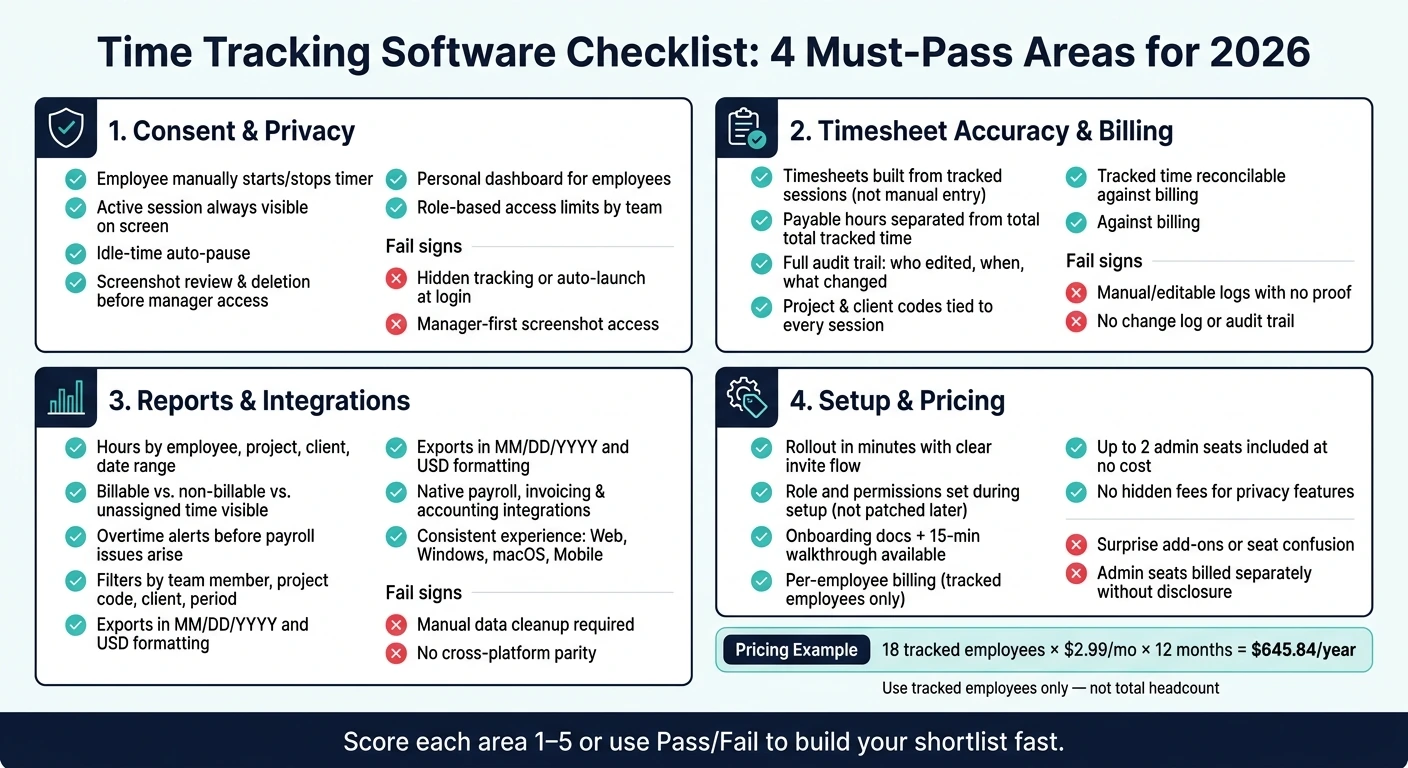
If a time tracking tool misses on consent, payroll accuracy, or clear pricing, I’d drop it fast. In 2026, I’d check for 4 things first: employee-controlled tracking, audit-ready timesheets, reports and integrations that work with payroll and billing, and setup that doesn’t drag on.
Here’s the short version:
- Privacy comes first: staff should start, pause, and stop their own timers, see when tracking is on, and review screenshots before a manager can view them.
- Timesheets need proof behind them: tracked sessions, payable-hour rules, edit logs, and project/client codes should all line up.
- Reports should help day to day: hours, billable time, overtime, and filters should be easy to use across web, desktop, and mobile.
- Pricing should be plain: per-employee cost, included admin seats, and annual math should be easy to check. For example, 18 tracked employees × $2.99 × 12 = $645.84/year.
A simple way I’d score each tool is 1 to 5 on each area, or just use pass/fail if I want a fast shortlist.
| Area | What I’d check first | Fail sign |
|---|---|---|
| Consent & privacy | Employee controls, visible timer, screenshot review, role limits | Hidden tracking or manager-first access |
| Time & billing records | Session-based timesheets, payable-hour split, change log | Manual logs with weak proof |
| Reports & integrations | Overtime, filters, exports, payroll/accounting sync | Data cleanup by hand |
| Setup & pricing | Fast rollout, clear roles, no surprise fees | Add-ons or seat confusion |
If I were choosing software today, I’d use this checklist to cut past feature noise and focus on what keeps payroll, billing, and team trust in good shape.
Time Tracking Software Checklist: 4 Must-Pass Areas for 2026
1. Consent-Based Monitoring and Privacy Controls
Next, check whether the software backs up its privacy claims with day-to-day controls. This part is about one simple thing: can employees clearly see, control, and limit tracking while they work?
Employee Control Over Start, Pause, Stop, and Idle Time
Strong software gives employees direct control over tracking. That means manual start and stop, no auto-launch at login, no remote admin start, and a clear on-screen sign that a session is active. People should never have to guess whether the timer is running.
Idle-time handling matters too. If someone walks away and forgets to stop the timer, hours can pile up fast. Good tools deal with that by pausing tracking after a short stretch of inactivity instead of letting the clock run forever.
Quick checkpoint for this area:
| Feature | Pass | Fail |
|---|---|---|
| Manual start/stop by employee | Employee initiates every session | Auto-launch on login or remote admin start |
| Active session indicator | Always visible on screen | Hidden or only in settings |
| Idle-time handling | Auto-pauses after inactivity | Timer runs indefinitely with no idle detection |
After time controls, look at how the product handles screenshots and employee review.
Screenshot Review, Deletion, and Manager Visibility Rules
Screenshots are only acceptable when employees can review them first and delete sensitive captures before managers can see them. That line matters. Managers should only have access to screenshots that employees have approved.
Employee Dashboard, Privacy Policy, and Access Permissions
Before you get into policy wording, check employee visibility. Employees should have a personal dashboard where they can view their own hours, sessions, notes, and approved screenshots at any time. If they can't see their own records, that's a red flag.
Then read the privacy policy. Skip vague language and look for plain-English answers to three questions:
- What is collected?
- Why is it used?
- How long is it kept?
The policy should also say who controls the data and who processes it.
Last, check role-based access permissions. Managers should see only their direct team's data, not the whole company's activity. Limiting access by role is a basic privacy standard.
sbb-itb-338a5ab
2. Timesheet Accuracy, Billing Structure, and Proof of Work
Once you’ve confirmed that employees control their own tracking, the next step is simple: make sure those controlled sessions turn into payroll-ready records.
That starts with one basic check. Are timesheets built from tracked sessions, or from manual entries that someone can type in later? That difference matters more than it might seem. If the record comes straight from actual work activity, you have something you can use for payroll, billing, and proof of work. If it’s mostly editable input, things can get messy fast.
Verified Timesheets and Payable-Hour Accuracy
Strong software builds timesheets from start, stop, and break activity, so the record matches what took place.
It should also separate tracked time from approved payable time. Those are not always the same thing. Maybe a break was missed, a session was tagged wrong, or new proof changes the final count. When that happens, the system should recalculate pay based on the updated evidence. Payable hours should also stay clearly separate from total tracked time, so there’s no confusion during payroll review.
Edits and corrections need a full audit trail. Every change should show who made it, when they made it, and what changed. That way, if payroll questions come up or a billing dispute lands on your desk, you can trace the record back without digging through guesswork.
Once the timesheet can be trusted, the next piece is whether each session connects to the right job.
Project Codes, Client Codes, and Billable-Rate Tracking
Every tracked session should be tied to a project, client, or task. That keeps billable time separate from internal time and makes the data usable for billing, invoicing, and internal chargebacks.
You’ll also want a system that lets you reconcile tracked time against billing. That’s how teams catch missed charges before they turn into lost revenue. Put plainly: if time was worked, you should be able to see where it belongs and whether it was billed.
Strong vs. Weak Software for Payroll and Billing
Use the table below to separate systems that support audit-ready billing from those that only store editable logs.
| Area | Strong Software | Weak Software |
|---|---|---|
| Timesheet source | Built from tracked sessions | Manual entry or editable logs |
| Payable hours | Separate from total tracked time | No clear distinction |
| Audit trail | Full history of edits and corrections | No change log |
| Billing structure | Project and client codes per session | Flat totals with no breakdown |
| Reconciliation | Tracked time can be compared with billing | Missed charges are hard to spot |
3. Reporting, Integrations, and Platform Coverage
Good timesheets only matter if teams can use the data after it's tracked. Once time entries are accurate, the next step is simple: can that data move through reports and systems without turning into a mess? Reporting and integrations aren't side features here. They're the day-to-day proof that consent-based tracking data can be trusted.
Reports Teams Actually Need: Hours, Utilization, Overtime, and Filters
Start with the reports most teams use all the time. You should be able to see hours by employee, project, client, and date range without digging around or cleaning up exports by hand.
At a glance, managers should be able to spot:
- Billable time
- Non-billable time
- Unassigned time
- Overtime status
Overtime visibility matters for a pretty obvious reason. If someone crosses a threshold, managers need to see an alert before it turns into a payroll problem.
Filters matter just as much. Teams should be able to slice data by team member, project code, client, or time period without doing spreadsheet gymnastics. And exports should follow U.S. formatting: MM/DD/YYYY for dates, USD ($) for currency, and decimal points for numbers.
Payroll, Invoicing, Accounting, and Project-Tool Integrations
Once reporting looks good, the next check is whether the data moves cleanly into the systems you already use. Hours and codes should sync into payroll, billing, or accounting tools through a native integration or API.
A quick reconciliation test can save a lot of pain later. Export one week of tracked time, then compare it against what your billing system would invoice. If the numbers don't line up cleanly, that's usually a data-mapping problem you want to fix before rollout.
Access rules matter here too. When data moves between systems, role-based access controls should carry over so payroll details stay visible only to the people who need them. That's the kind of thing teams often miss until someone sees data they shouldn't.
Web, Windows, macOS, and Mobile Support for Remote Teams
Device coverage is the last practical check. Employees should get the same tracking experience no matter where they're working or what device they're using.
That means the same controls should work across browser, desktop, and mobile. For remote teams, mobile support can't just be a stripped-down clock-in button. It needs to keep the same employee controls and the same level of transparency people get on web and desktop.
Look for the same tracking controls across web, Windows, macOS, and mobile.
4. Onboarding, Pricing, and Final Decision Criteria
After reporting and integrations, the next check is simple: can the tool go live fast, is pricing easy to follow, and will your team get help on day one?
Setup, Roles, and Support During Rollout
Rollout should take minutes, not hours. That usually comes down to two things: a clean invite flow and clear role setup from the start.
Make sure the approved privacy settings and permissions can be applied during setup, not patched in later. It also helps to assign one rollout owner so roles stay consistent across the team. On the support side, look for solid onboarding docs plus a 15-minute walkthrough or demo.
Once setup looks good, move to pricing.
Seat-Based Pricing, Annual Cost Math, and Hidden-Fee Checks
Pricing should be easy to check before you commit: $2.99 per employee/month, billed annually. Only employee seats are billable, and up to 2 admin seats are included at no cost.
This is where it pays to slow down and double-check the details. Before signing, confirm:
- whether admin seats are billed separately
- whether privacy-related features cost extra
When you estimate annual cost, use tracked employees only, not total headcount. If 18 out of 25 employees need tracked time, the math is 18 × $2.99 × 12 = $645.84/year - not 25 seats.
Conclusion: Must-Pass Criteria for 2026
If a tool fails any of these checks, take it off the shortlist.
| Must-Pass Criteria | Why It Matters |
|---|---|
| Employee-Controlled Tracking | Staff start, pause, and stop their own timers. |
| Transparent Screenshot Review | Employees review and remove screenshots before managers can see them. |
| Verified Timesheets | Screenshot deletions flow into payable hours automatically. |
| Project & Client Billing Accuracy | Project and client codes stay tied to tracked work. |
| Useful Reports | Reports show hours, utilization, overtime, and filters. |
| Practical Integrations | Payroll, accounting, and project tools sync without manual entry. |
| Cross-Platform Usability | A consistent experience on web, Windows, macOS, and mobile supports distributed teams. |
| Simple Onboarding | Teams get tracking quickly with clear roles, setup support, and documentation. |
| Predictable Pricing | Per-employee billing, no hidden fees, and admin seats clarified upfront. |
The right tool keeps accountability, privacy, and cost clarity in balance.
How can I test privacy controls before rollout?
Start with a pilot that uses a small, representative group of users. Make sure consent-based monitoring works the way it should, and check that data collection, storage, and retention line up with your privacy policy.
Before you roll it out across the company, take a close look at admin access. Confirm that employees can view their own data when the law says they can. Review logs for unauthorized access, and test data deletion requests to make sure the process works in practice, not just on paper.
What makes a timesheet audit-ready?
A timesheet is audit-ready when it relies on reliable, current tracking instead of old manual methods like spreadsheets or visual checks.
It also needs a clear audit trail. That makes it much easier to trace errors or losses, flag discrepancies automatically, and keep recorded hours accurate for business reporting.
How do I estimate my real annual cost?
Look past the base subscription price. What matters is your total monthly cost per seat. Then layer in any add-ons for advanced reporting, integrations, or extra storage.
It also helps to account for the costs that don’t show up on the pricing page. Think time spent on manual audits, admin fixes, or workarounds when the tool doesn’t match your workflow. Those costs hit your bottom line and shape your overall return on investment.