Manager Access Policy for Employee Monitoring
Manager Access Policy for Employee Monitoring
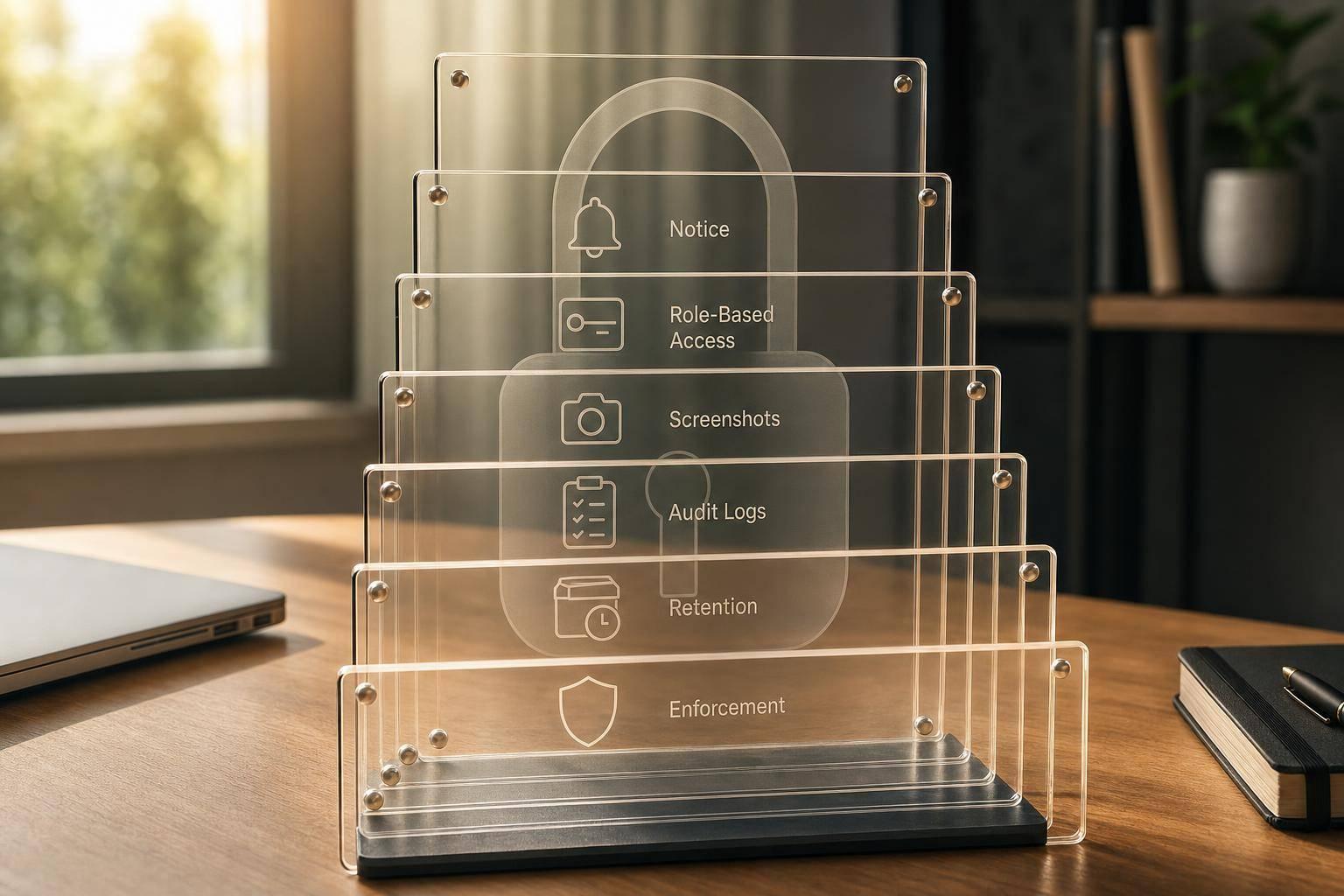
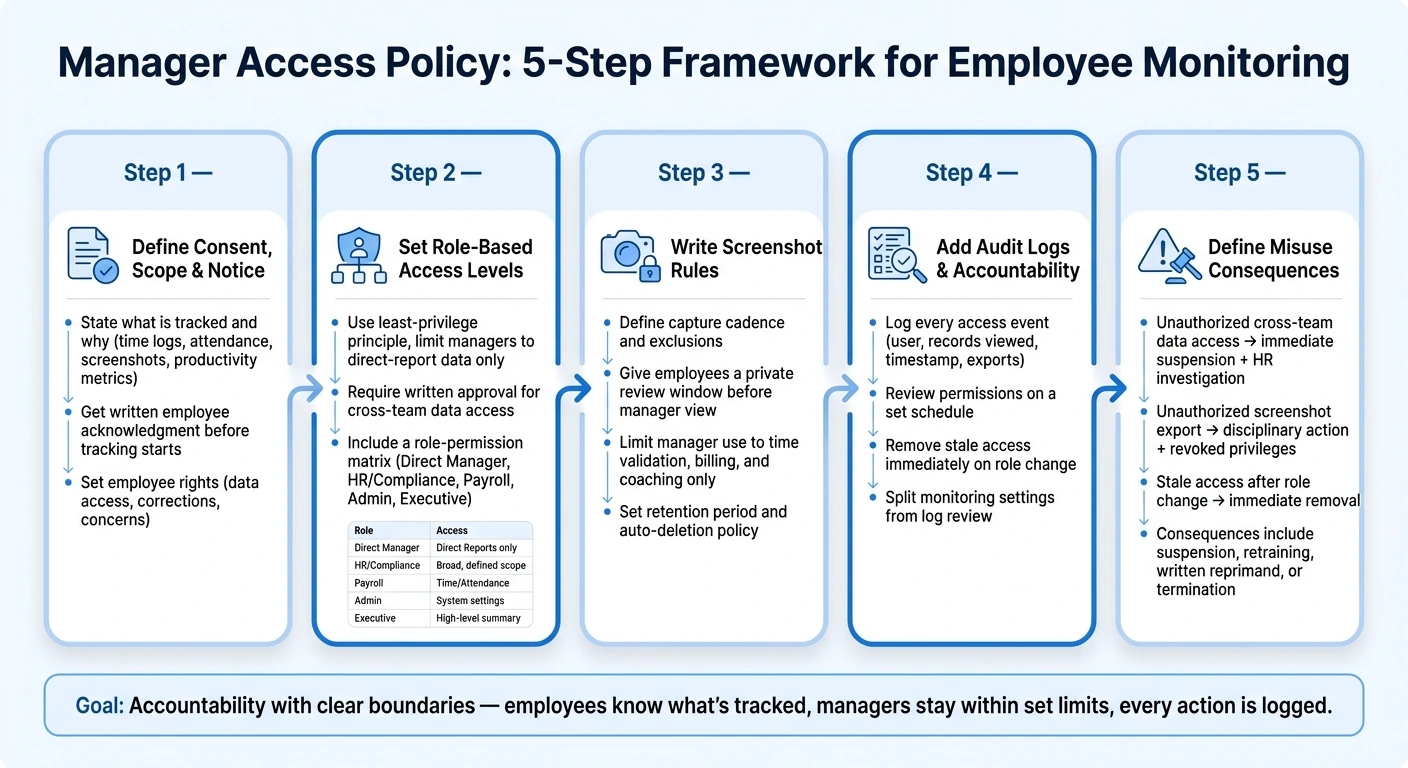
If managers can see employee monitoring data, the rules need to be written down before tracking starts. From what I see in this article, the policy comes down to 5 parts: notice, role-based access, screenshot rules, audit trails, and employee rights.
Here’s the short version:
- I make it clear what is tracked and why
- I tell employees before tracking begins and get written acknowledgment
- I limit managers to direct-report data only
- I allow manager viewing of approved screenshots only
- I set rules for retention, deletion, and exports
- I log each access event and review permissions on a set schedule
- I give employees a way to request data, ask for fixes, and report concerns
A few policy details matter most:
- 5 policy elements form the core of the rule set
- Screenshot data gets the tightest limits because it carries the highest privacy risk
- Access should follow the person’s job role, not just their title
- If someone needs data outside their team, the policy should require a written reason and approval
- The article also calls for clear penalties, including suspension, retraining, written reprimand, or termination
My takeaway: a manager access policy should keep monitoring tied to specific work uses like payroll, attendance, billing support, and coaching - not turn it into an open-ended system for watching people.
This article is not about software setup first. It’s about writing plain rules that tell people who can see what, when they can see it, and what happens if they misuse it.
Manager Access Policy: 5-Step Framework for Employee Monitoring
Employee Monitoring Laws & Compliance Framework 2026 Guide
sbb-itb-338a5ab
Step 1: Define Consent, Scope, and Employee Notice
Start with scope before access. Put it in writing: what the system tracks, why it tracks it, and when employees are told about it.
State What Is Tracked and Why
Spell out each data category and its business purpose in plain English. Keep it simple.
| Data Category | Business Purpose |
|---|---|
| Time logs | Payroll accuracy |
| Attendance records | Scheduling and absence tracking |
| Session notes | Project documentation |
| Approved screenshots | Client billing support |
| Productivity metrics | Coaching and performance support |
When each category is tied to a specific purpose, it becomes much easier to keep access narrow and tied to a stated need. It also gives employees a clear view of why the monitoring is in place. Use this table as the baseline for every access rule that comes later.
Document Employee Acknowledgment and Ongoing Notice
Sending out the policy isn't enough by itself. Before tracking starts, each employee should acknowledge the policy in writing or through a digital sign-off.
Add a clear effective date in the policy header so there’s no confusion about when the rules start. If monitoring settings change - such as new data categories, a different screenshot cadence, or updated access levels - revise the policy and notify employees again. In short: update the policy whenever tracking settings change.
"This privacy notice describes how we collect and use personal information about you during and after your relationship with us, in accordance with data protection law." - British Broadcasting Corporation (BBC)
Once notice is clear, access rules can stay tied to what employees agreed to.
Set Employee Rights Inside the Policy
Make employee rights plain so manager access stays visible and limited. The policy should state what employees can do with their own data. At a minimum, include the right to:
- Request a copy of stored data
- Request corrections or deletions where applicable
- Understand how the tracking system works
- Raise concerns through a named internal contact, such as a Data Protection Officer
Where needed, add a process for employees to object to certain types of data collection. If a feature needs consent, say so clearly, and note that withholding or withdrawing consent may affect how the tool works. Put the request process and the internal contact together in one short policy block.
Step 2: Set Role-Based Access Levels for Managers and Admins
Once employees know what's being tracked and why, the next step is simple: who gets to see that data? The answer should not be “any manager.” Access should follow the job, not the title. After notice is in place, spell out exactly who can view each type of data.
Map Each Role to Specific Permissions
Use least privilege. Give each role only the data it needs to do its job. Payroll staff don't need screenshots. Executives don't need person-level activity data. A direct manager doesn't need data from teams outside their own. Assign one owner for each role and data type.
Limit Managers to Direct-Report Data and Approved Records
Direct managers should only see data for their own team: time records, attendance, task progress, and approved screenshots. Only approved screenshots should appear in the manager view. In a consent-based setup like AllyTracker, managers can access only the approved screenshot gallery, not raw, unreviewed captures.
If a manager needs data outside their direct reports, such as for a cross-functional project, that should require a documented business reason and written approval. Put that escalation path in the policy so it doesn't turn into an informal judgment call.
Write the Access Rules Into the Policy
Put the access matrix in the policy itself. Vague wording like “managers may access relevant records” leaves too much room for guesswork. Instead, name each role, state what it can see, what it can do, and what is off-limits by default. Each permission should match the data employees were told would be collected.
| Role | Allowed Data | Allowed Actions | Prohibited Actions |
|---|---|---|---|
| Direct Manager | Direct-report time logs, attendance, task progress, approved screenshots | View team activity, approve time records, track task progress | Accessing data for non-direct reports; exporting raw logs |
| HR / Compliance | Compliance logs, productivity reports, attendance records | Review policy violations, audit attendance, export records for disputes | Modifying system-wide configurations; deleting audit logs |
| Payroll Staff | Approved timesheets, overtime records, time tracking, break logs | Export time data for processing, verify hours | Viewing screenshots or unapproved activity data |
| System Admin | Audit logs, user profiles, system configuration | Configure roles, manage permissions, review access logs | Routine viewing of screenshots or session notes |
| Executive | Aggregated productivity reports, department-level trends | View high-level data, support strategic planning | Accessing individual activity data or approved screenshots |
Once this table is in the policy, it becomes the baseline for screenshot review, retention, and export rules in Step 3.
Step 3: Write Screenshot Review, Retention, and Usage Rules
After role access is set, spell out how screenshots are captured, reviewed, stored, and exported. Screenshots need their own rules because they carry the highest privacy risk.
Define Screenshot Capture and Employee Review
Set the screenshot cadence, limit captures to tracked work time, and note any technical exclusions for personal or sensitive content. That means the policy should say when screenshots can happen and when they cannot.
Employees should also get a private review window to check their own screenshots before anything reaches manager view. They should be able to exclude screenshots from manager view, and the policy should make one point clear: excluding screenshots may reduce verified time for that session. AllyTracker supports this workflow with a private screenshot review tray, and excluded screenshots are permanently deleted.
Once employees review and approve captures, put firm limits on how managers can use them.
Limit Manager Use of Screenshot Galleries
Approved screenshots should be used only for:
- time validation
- billing support
- coaching tied to work output
The policy should ban personal judgments and block any use of screenshots to watch non-work behavior. Managers should only view approved screenshot galleries.
After those use limits are in place, the next step is setting how long approved screenshots stay available.
Set Retention, Deletion, and Export Restrictions
Add the screenshot retention period here, then state that approved screenshots are deleted automatically when that period ends. Keep export access tight. Limit it to HR or compliance for documented disputes or audits.
The policy should also ban forwarding or exporting screenshots outside approved channels. On top of that, state the penalty for unauthorized export. These limits keep approved screenshots tied to a specific business purpose.
Step 4: Add Audit Logs, Accountability, and Enforcement
Once you've limited screenshots and manager access, the next move is simple: make every action traceable.
Audit logs show who opened employee data, what they looked at, when they looked at it, and what they changed. Each access event should record the user, the records viewed, the timestamp, and any exports, deletions, or setting changes. If you don't have that paper trail, it's much harder to figure out when misuse or unauthorized access happened - or what went wrong with the data. Set a separate retention period and export rule for audit logs.
Review Access Regularly and Remove Stale Privileges
Audit logs aren't just there to sit in the background. Use them to review permissions on a set schedule.
Assign one owner to handle scheduled access reviews and follow up on exceptions. Set a regular review cadence for audit logs and manager permissions. Then remove access right away when someone changes roles, goes on leave, or leaves the company. Also, split monitoring settings from log review so one person can't control both.
Define Misuse and Policy Consequences
Spell out the response for each violation so enforcement stays consistent.
| Access Behavior | Policy Response |
|---|---|
| Manager views direct-report data for a documented work purpose | Log the event. |
| Manager views data for employees outside their reporting line | Immediate access suspension; HR investigation |
| Exporting screenshots without prior documented approval | Formal disciplinary action; export privileges revoked |
| Modifying monitoring settings without secondary authorization | Policy violation; unauthorized changes trigger review |
| Former manager retaining access after a role change | Stale access after a role change; immediate removal of privileges |
State the response for each violation clearly: suspension, retraining, written reprimand, or termination.
Conclusion: Turn the Policy Into a Repeatable Standard
A strong policy turns notice, access, screenshot handling, and audit logs into one clear standard people can follow and enforce. Once those commitments are set and applied the same way each time, the policy stops sitting on the page. It starts working like a system.
To make that system last, tie it to ownership and routine checks. Give one person clear responsibility, review permissions on a fixed schedule, and keep the rules inside your SOPs. A policy with a named owner, a review cadence, and clear consequences is much easier to enforce.
Your tool should back up those rules, not stand in for them. AllyTracker supports this approach with employee-controlled timers, private screenshot review, and approved manager galleries.
The goal is accountability with clear boundaries. When employees know what's tracked, managers stay within set limits, and every action is logged, monitoring becomes a process that supports trust instead of undermining it.
Who should own this policy?
HR and Legal/Privacy should share ownership of this policy, while system administrators run the monitoring tools day to day.
HR and Legal/Privacy set the rules around consent, employee notice, access, and screenshot review. Admins then put those rules into practice with role-based permissions and audit logs.
How often should access be reviewed?
Review manager access at least quarterly. People change roles, teams shift, and old permissions can stick around longer than they should. A set-it-and-forget-it approach is where problems start.
Instead of checking access only during setup, revisit it every few months to make sure permissions still fit each manager’s current role and responsibilities.
What happens if a manager misuses monitoring data?
It should be blocked and traceable. AllyTracker includes audit logs, consent-based controls, and access-level limits for reviewing monitoring outputs, including screenshots.
So if someone misuses the system, you can spot it and check the audit trail. The policy should also require employee notice and restricted access, so managers see only what they’re allowed to use.